Isolated devices
Run several Android devices side by side. Each one has its own apps, data and storage location, plus RAM and CPU limits.
Free and open source · Linux x86_64
AnvilDroid is a desktop app and runtime controller for Waydroid. Run several isolated Android devices side by side and open every app in its own native window, on Wayland and X11.
Experimental and actively developed. Free under the MIT license.
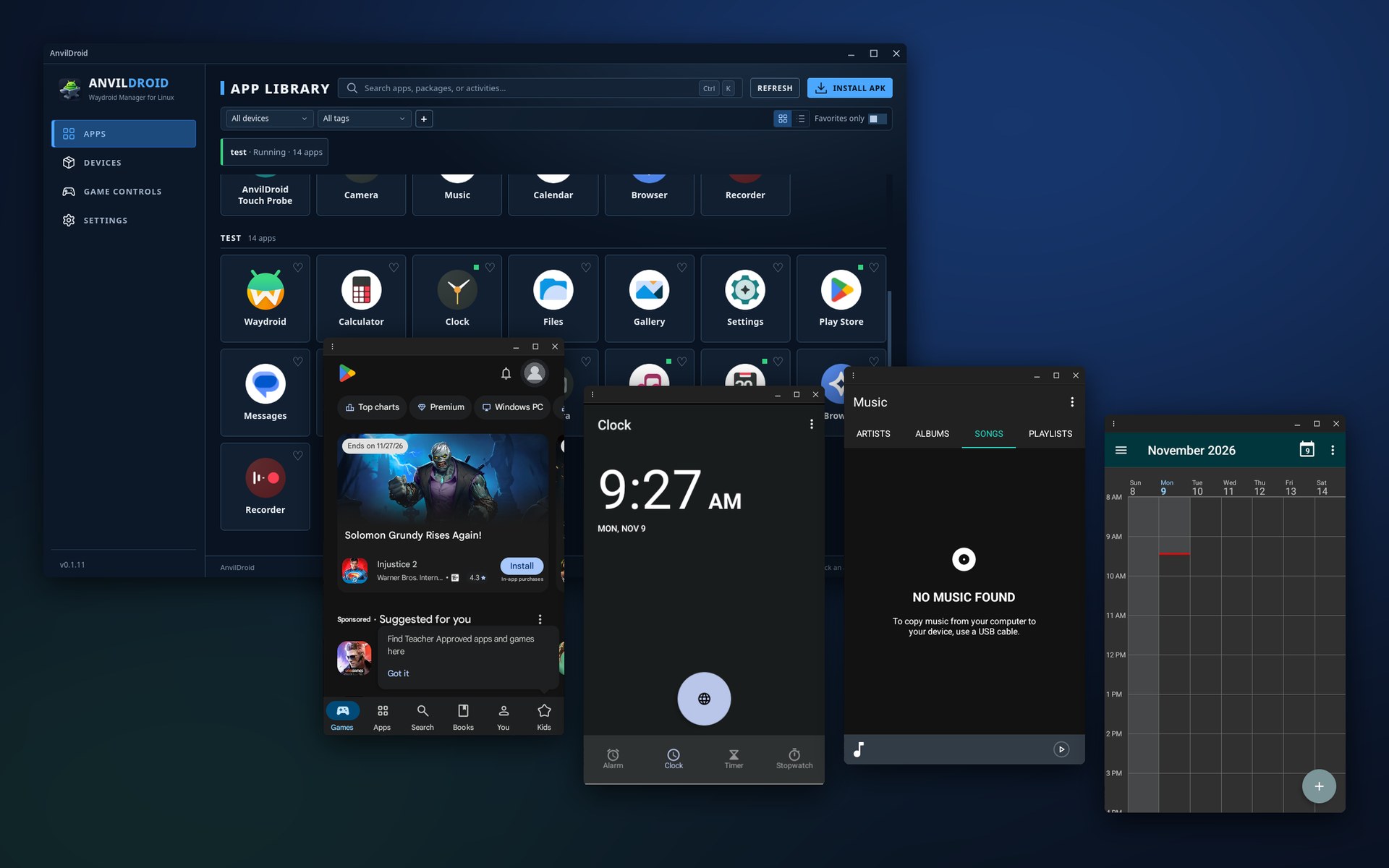
Waydroid runs the Android system. AnvilDroid handles the rest: windows, settings, input and updates.
Run several Android devices side by side. Each one has its own apps, data and storage location, plus RAM and CPU limits.
Every Android app opens as its own desktop window on Wayland and X11. You can still switch a device to the full Android UI.
Android notifications appear in your desktop's notification center. You choose which apps can show them.
Map mouse and keyboard to touch, capture the mouse for FPS games, and record macros. Schemes are saved per app; press F2 in a game window.
Type with your host input method (e.g. Fcitx), share the clipboard, and open host folders from inside Android.
Use official or custom images (ext4, EROFS, SquashFS). ARM translation, device identity profiles and help with Google Play registration are built in.
Pass one or more host webcams through to Android. Pick the GPU per device: Intel and AMD with Mesa are supported, NVIDIA is experimental.
Check for and install updates from Settings → Updates. If you installed from a package repository, your normal system update also updates AnvilDroid.
Pick the HUD or Classic theme, light or dark, and one of six accent colours. Developers can connect Android Studio over ADB and export diagnostics.
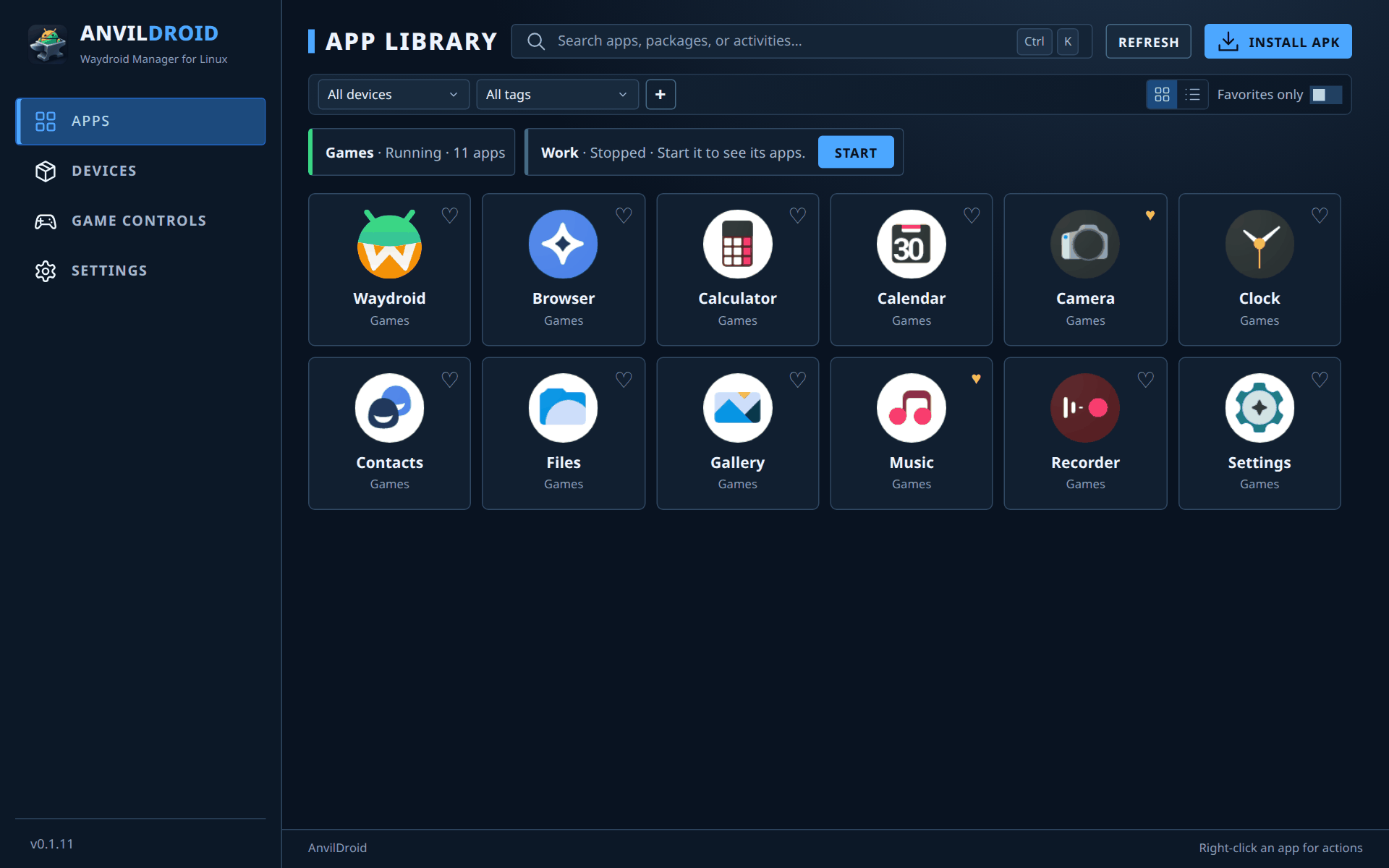
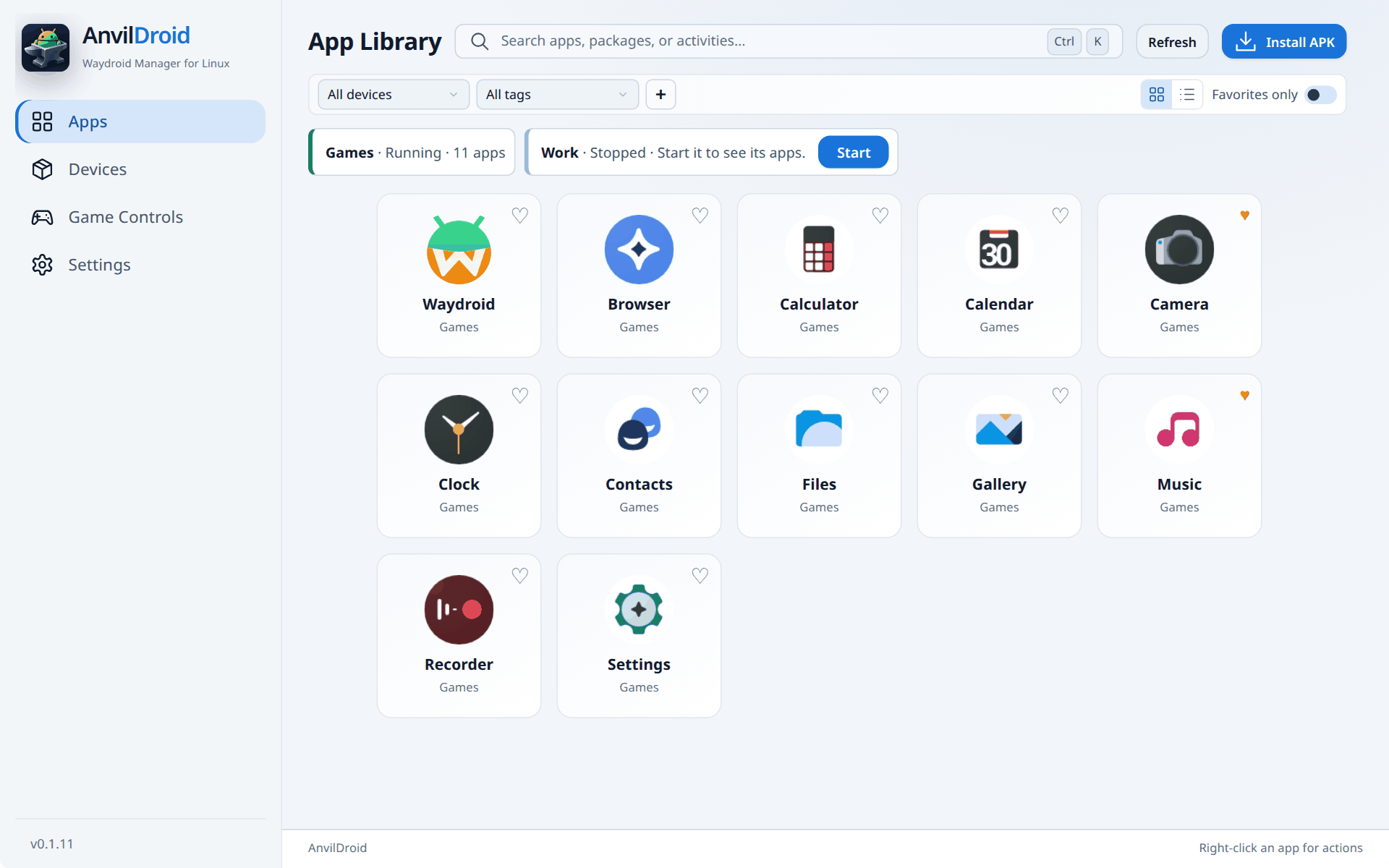
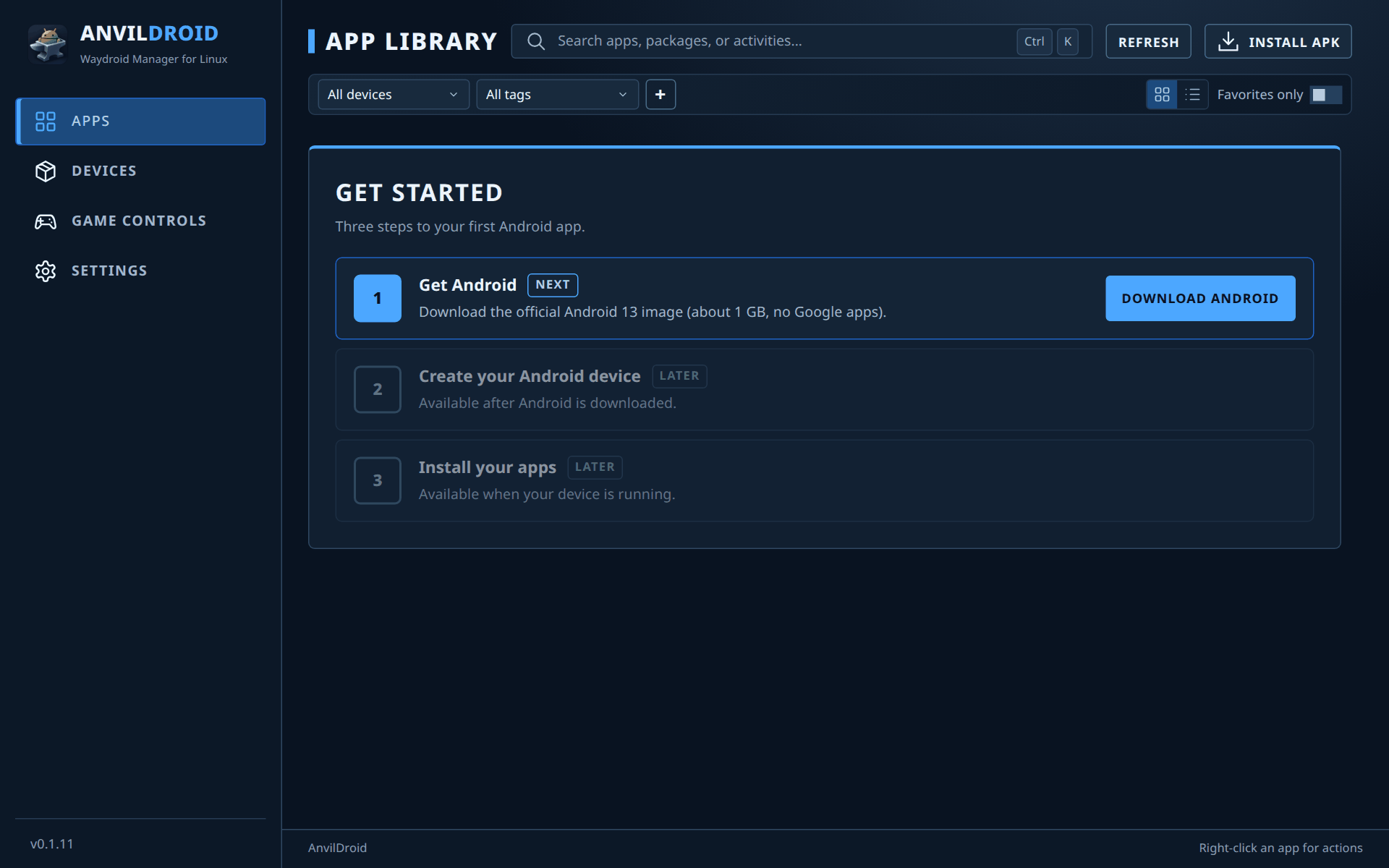
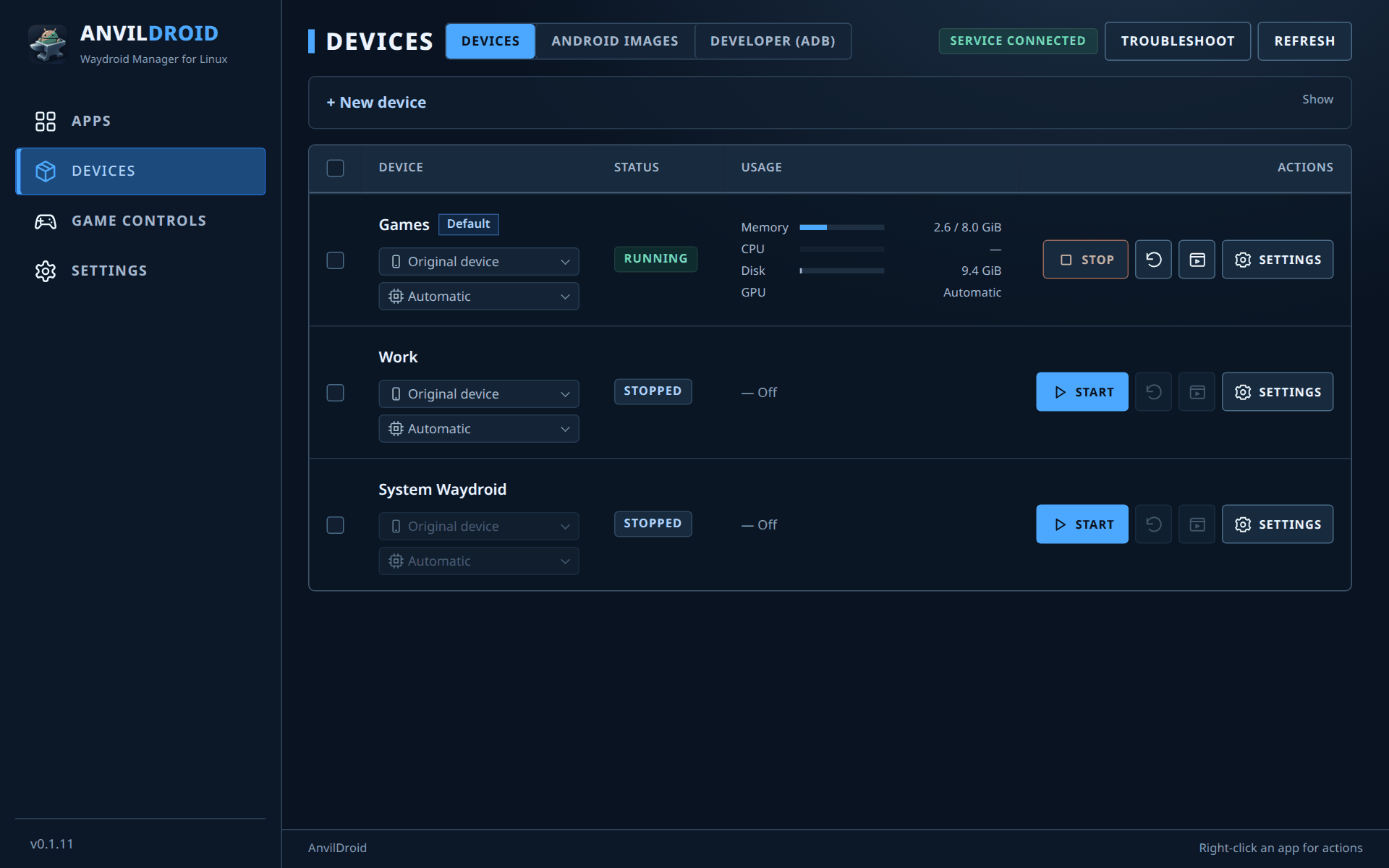
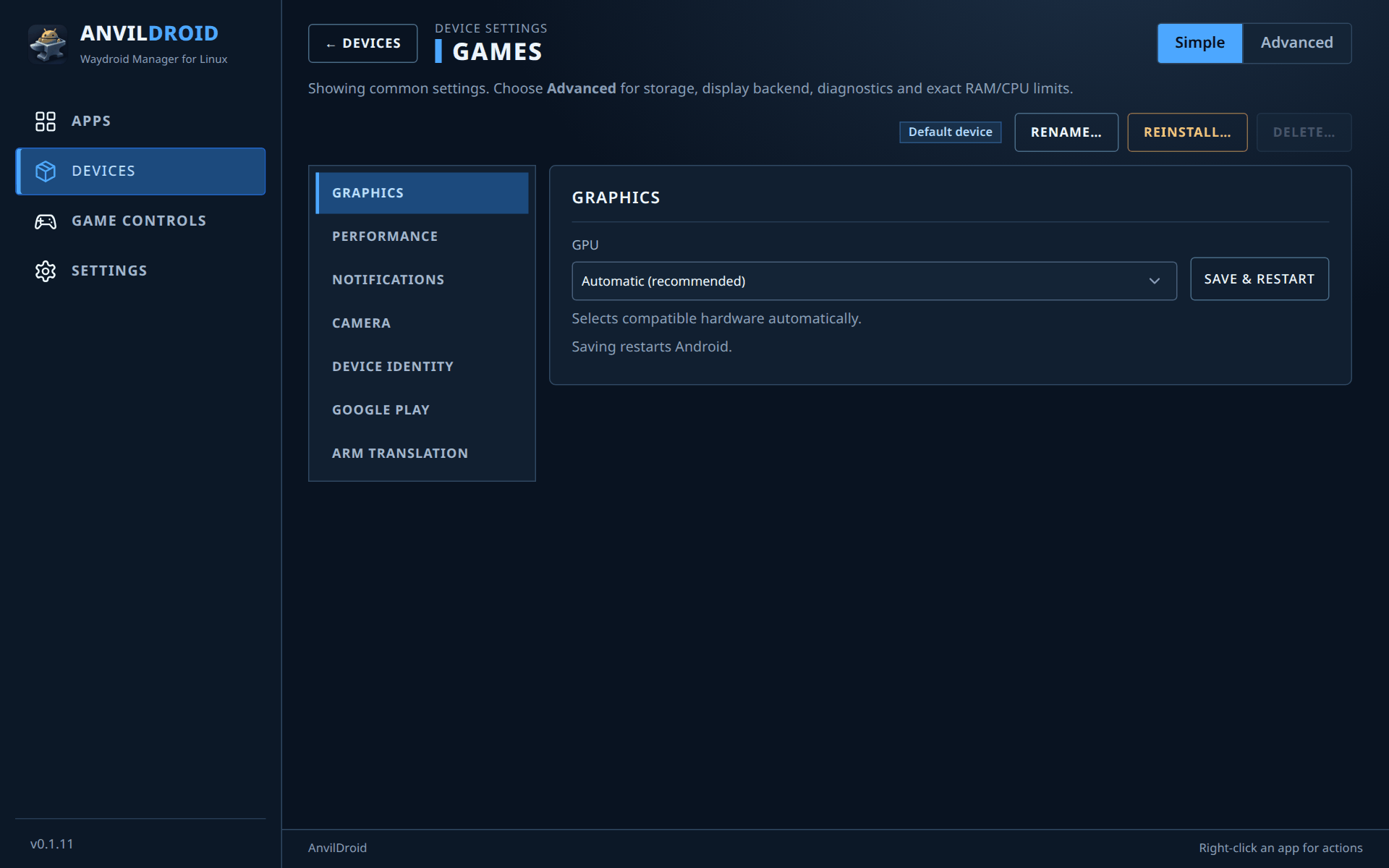
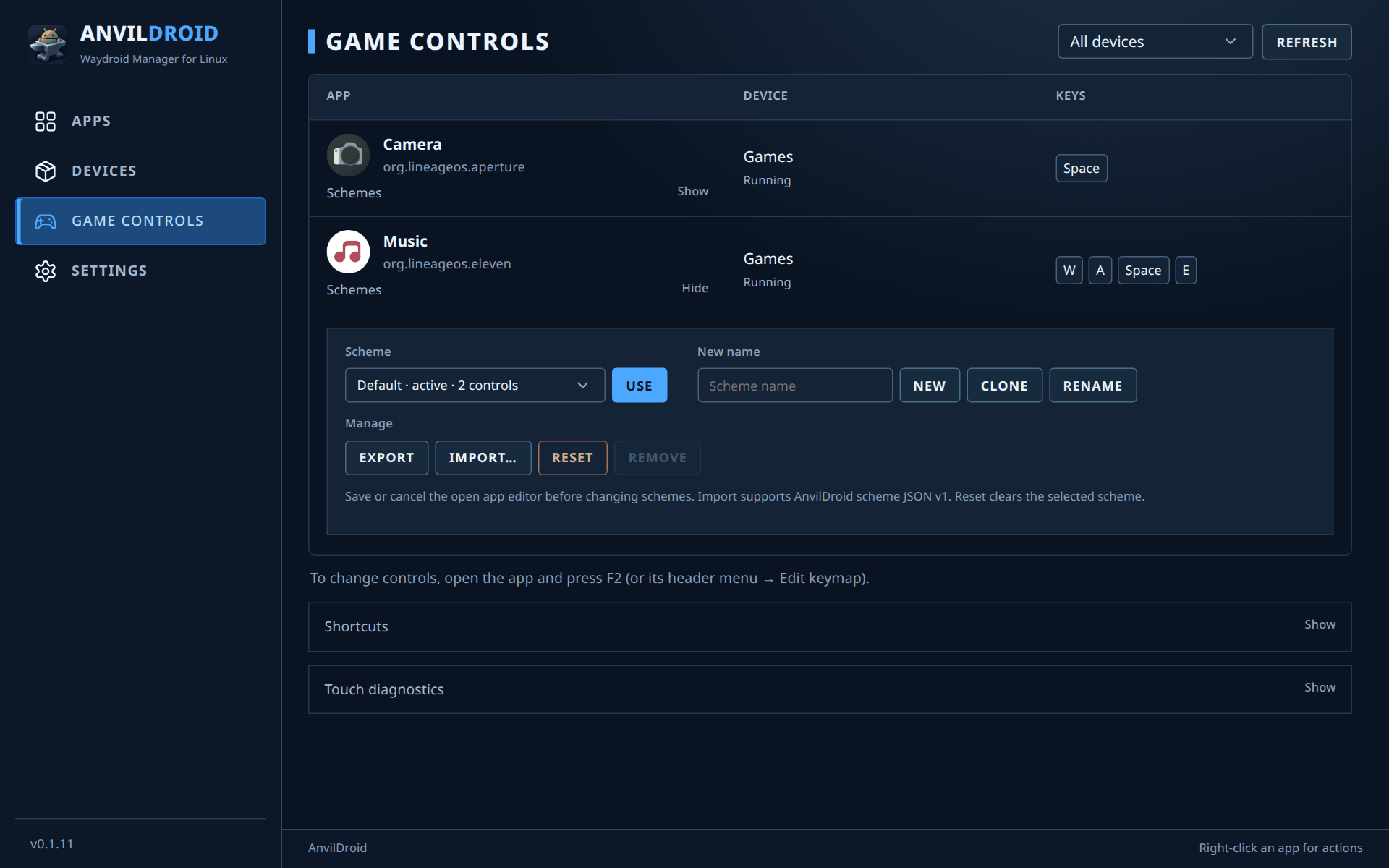
Screenshots show the built-in apps of LineageOS-based Waydroid images. The windows shot is a real KDE Plasma session; page shots use sample device data. New to AnvilDroid? Read the user guide.
Choose your distribution and paste one command into a terminal. It adds a signed package repository, so your normal system update also updates AnvilDroid.
curl -fsSL https://anvildroid.github.io/packages/install.sh | sudo bashUpdates come with sudo apt upgrade.
curl -fsSL https://anvildroid.github.io/packages/install-fedora.sh | sudo bashUpdates come with sudo dnf upgrade.
curl -fsSL https://anvildroid.github.io/packages/install-opensuse.sh | sudo bashUpdates come with sudo zypper update.
curl -fsSL https://anvildroid.github.io/packages/install-arch.sh | sudo bashUpdates come with sudo pacman -Syu.
Works on any distribution. Download the AppImage, make it executable, then run it:
chmod +x AnvilDroid-*-x86_64.AppImage && ./AnvilDroid-*-x86_64.AppImageThe first launch asks for administrator approval to install the runtime controller. After that, the app updates itself from Settings → Updates.
Download the AppImagePrefer single files? Every release also includes
.deb, .rpm and .pkg.tar.zst packages and a SHA256SUMS file.
The install scripts are short and you can read them first, e.g.
install.sh.
The app guides you through it. The user guide covers every page in detail.
No. Like Waydroid, AnvilDroid runs a full Android system in a Linux container that shares your kernel. It is not a virtual machine, so apps run at near-native speed. AnvilDroid manages the containers and turns app windows into desktop windows.
The official Android 13 Waydroid images are the most tested. Newer and custom images are experimental.
Usually not. Apps that require Play Integrity, such as banking apps, some games and DRM-protected video, generally refuse to run. Other apps depend on the image, the ARM translator and your GPU.
Android devices need kernel features (binder, namespaces, mounts) that only root can set up. A small controller service runs as root and starts only when needed. The desktop app itself runs as your user.
Not on the same device. Each device uses one mode at a time, and you can switch between them in its settings under Display.
Remove the package with your package manager, for example sudo apt remove anvildroid-controller.
For the AppImage, delete the file.